
When you are creating a trigger, you must indicate which condition(s) will trigger the action. After the condition is set, you can then set the action for the trigger.
If your trigger is based on a record event, there are five Actions you can choose from:
- Record Email (which has the option to include a PDF copy of the record)
- Audit Summary Email (only available when IntouchCheck/a Check program is selected in the conditions)
- Case
- SMS
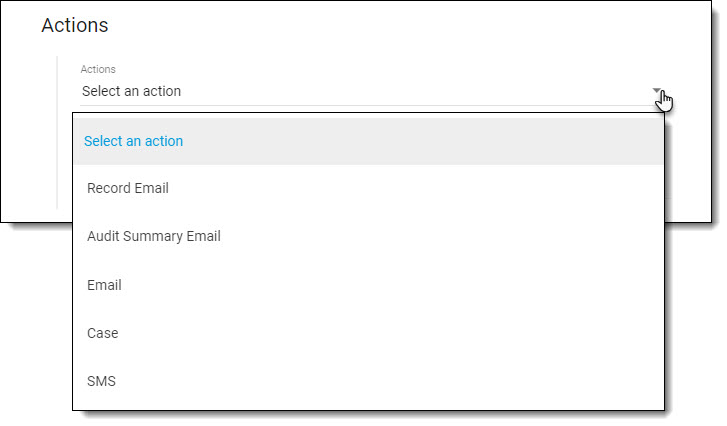
If your trigger is based on a FileShare event, only the Email Action is available.
If you require any assistance setting up a trigger, do not hesitate to reach out to our Help Desk for support.
MORE ABOUT ACTIONS...
Record Email & Email
You would choose the Record Email or Email action when you want to send an email to specific users or user groups when the record event occurs and the condition(s) are met.
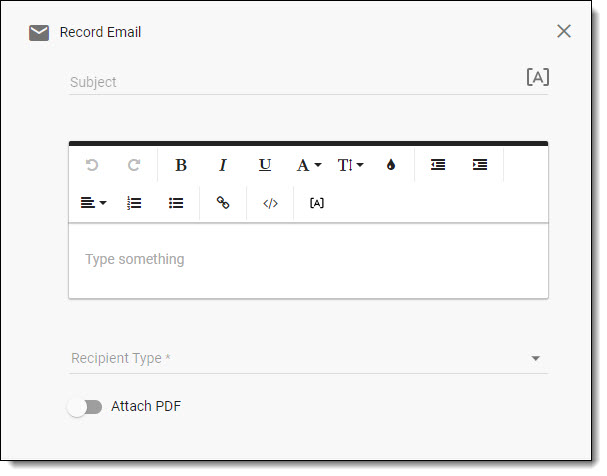
Enter the subject line and body of your email as you want it to appear on the notifications.
- You can use piped text in both the subject and body of the email; click on the [A] to insert Program Info or Record Info in the email
- Apply formatting to the body of the email using the features in the editor
Select the Recipient Type (User, Group, or for Check programs, Auditor).
- If the email is being sent to a user or group, open the Access user or Access group drop down menu and select all the users or groups you want to include on the notification
- If the email is being sent to the Auditor who completed the Check audit, you do not have to enter any additional details for the recipient; the system will automatically send the notification to the email address on the auditor's account
The Record Email and Email actions will send emails to the specified user(s) or user group(s), however, the emails are restricted based on hierarchy permissions. That is, a user will not get an email notification if they do not have permission to view the data for that location.
When using the Record Email action you have the option of including a PDF copy of the report.
- You can choose a Record Summary format, Print Friendly (condensed layout), or Standard format for the PDF
The Email action does not include that option.
Audit Summary Email
You would choose the Audit Summary Email action to send a pre-configured email to specific users or user groups when the record event occurs and the condition(s) are met.
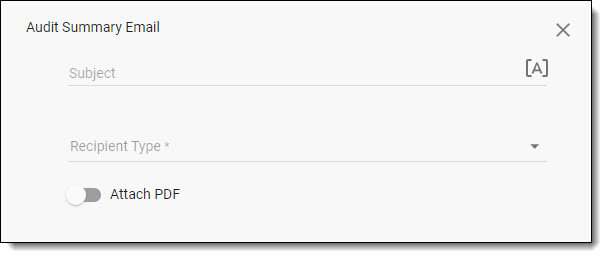
Enter the subject line of your email as you want it to appear on the notifications.
- You can use piped text in the subject of the email; click on the [A] to insert Program Info or Record Info in the email
The body of the email will include the following details:
- Submission Time
- Auditor
- Score
- Outcome
- Follow Ups Required
- Items Requiring Attention (when applicable) – with 'not ok' values in red text, auditor comments, and a note that photos are provided for each line item, if photos exist
Select the Recipient Type (User, Group, or for Check programs, Auditor).
- If the email is being sent to a user or group, open the Access user or Access group drop down menu and select all the users or groups you want to include on the notification
- If the email is being sent to the Auditor who completed the Check audit, you do not have to enter any additional details for the recipient; the system will automatically send the notification to the email address on the auditor's account
The Audit Summary Email action will send emails to the specified user(s) or user group(s), however, the emails are restricted based on hierarchy permissions. That is, a user will not get an email notification if they do not have permission to view the data for that location.
When using the Audit Summary Email action you have the option of including a PDF copy of the report.
- You can choose a Record Summary format, Print Friendly (condensed layout), or Standard format for the PDF
Case
You would choose the Case action to create a new case when the record event occurs and the condition(s) are met.
For example, if a particular question is answered in a certain way, perhaps you need someone to followup.
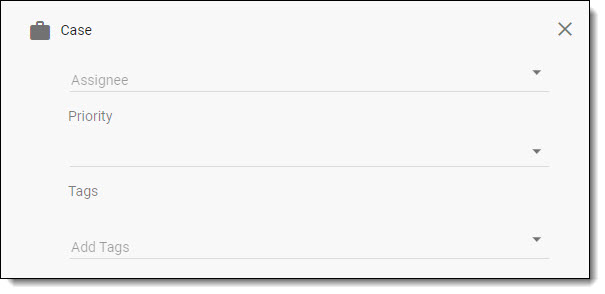
You have the option of automatically:
- Assigning the cases that are created to a specific user
- Setting the priority on the case (Low, Medium, or High)
- Adding tags to the case (Tags must be created in Access before they can be added)
To learn more about Case Management, review the articles provided here.
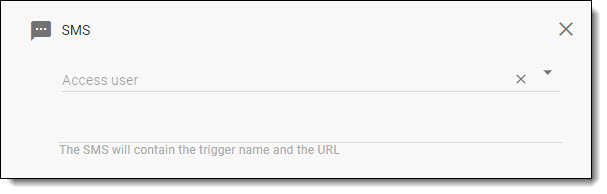
SMS
SMS stands for "short message service". I.e. a text message.
Users can only be added to the SMS action if the user has a correctly formatted mobile phone number on their user account.
Standard messaging fees apply.
To set up your text message notifications, select SMS in the Actions drop down menu, then indicate which users should receive the text message.
Comments
0 comments
Article is closed for comments.