
When you are creating a trigger, in addition to specifying the event, you must indicate which condition(s) will trigger the action. After the condition(s) are set, you can then set the action for the trigger.
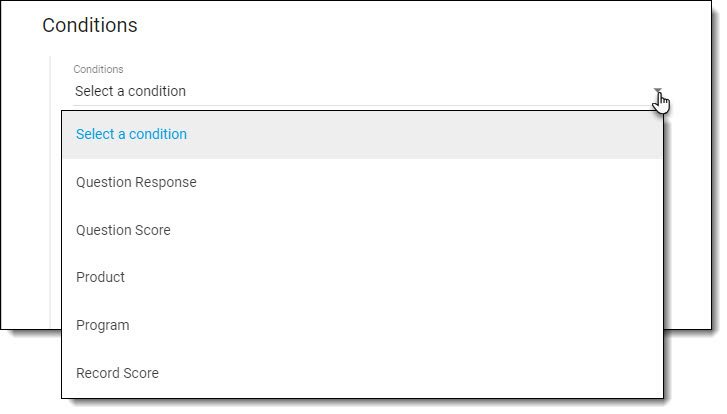
If your trigger is based on a record event, there are five Conditions you can choose from:
- Question Response
- Question Score
- Product
- Program
- Record Score
You may find you will want to set more than one condition. For example, Program and Record Score.
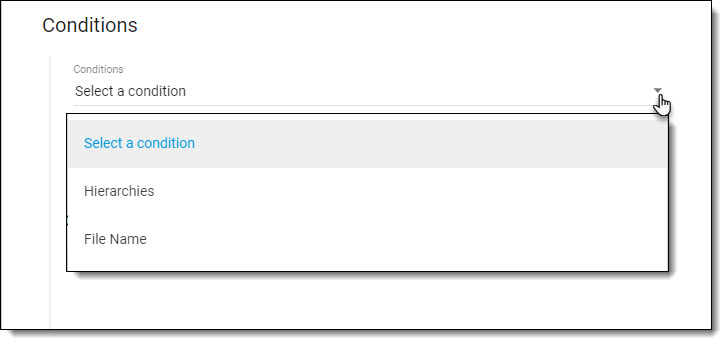
If your trigger is based on a FileShare event, there are two Conditions you can choose from:
- Hierarchies
- File Name
After you've set the condition on your trigger, you can set the action.
If you require any assistance setting up a trigger, do not hesitate to reach out to our Help Desk for support.
MORE ABOUT CONDITIONS...
Question Response
You would choose the Question Response condition if you want to trigger the action based on the response to a specific question.
For example, you might want to send an email notification if a comment is entered in a specific text field on your form.
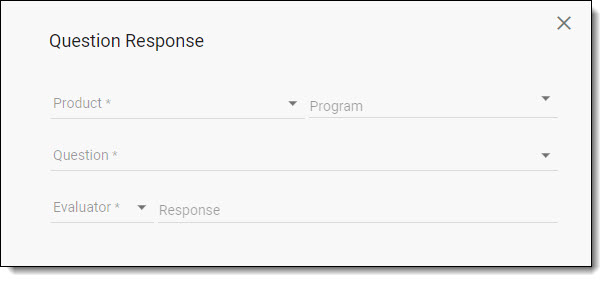
Because the Question Response condition applies to a specific question on a form, you are required to select the Product and Program before you can select the question details.
After selecting the Product and Program, choose a Question and an Evaluator.
- The Question drop down will display all questions on the form.
- Evaluator options are:
- Equals - the response is X
- Not Equals - the response does not equal X
- Less Than - the response is less than X (used for the Number and Calculation question types only)
- Greater Than - the response is greater than X (used for the Number and Calculation question types only)
- Empty - there is no response on the question (no Response value is required for this evaluator)
- Not Empty - there is a response on the question (no Response value is required for this evaluator)
After choosing the Question and Evaluator for the condition, you will then set the Response value, when applicable.
How you enter the Response value for the condition can depend on both the product type and question that are selected for the trigger.
For example, for a Check program Simple Check, Radio, or Checkbox question, enter ok or not-ok - whichever is applicable to the answer response.
For a Shop or Audit program, enter the numeric response value. E.g. If the question has three answer responses, and you want the trigger the action when the third response is selected, you would enter "3".
Question Score
You would choose the Question Score condition if you want to trigger the action based on the score of a specific question.
For example, you might want to send an email notification if a particular question score equals zero.
Because the Question Score condition applies to a specific question on a form, you are required to select the Product and Program before you can select the question details.
After selecting the Product and Program, choose a Question and an Evaluator.
- The Question drop down will display all questions on the form.
- Evaluator options are:
- Equals - the score is X
- Not Equals - the score does not equal X
- Less Than - the score is less than X
- Greater Than - the score is greater than X
After choosing the Question and Evaluator for the condition, you will then set the Score value for the condition.
Product
You would choose the Product condition if you want to trigger the action when a record event occurs for one or more specific products.
For example, every time a record is created for any of your Check and/or Shop programs.
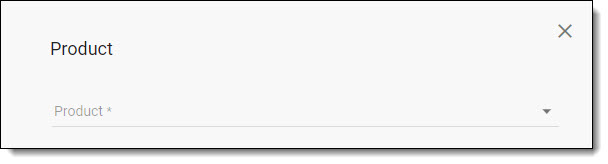
Only the products that have been set up for your organization and that you have access to will be available in the Product dropdown menu.
Product options are:
- IntouchCheck
- IntouchSurvey
- IntouchShop
- IntouchAudit
Program
You would choose the Program condition if you want to trigger the action when a record event occurs for one or more specific programs.
For example, every time a record is created for one of your Check and/or Shop programs.
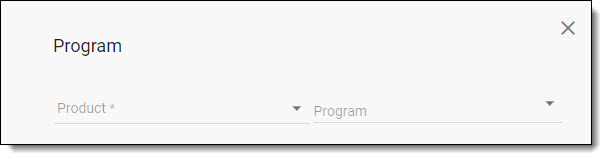
Because the programs are tied to a specific product, you are required to select the Product before you can select the question details.
Only the products that have been set up for your organization and that you have access to will be available in the Product dropdown menu.
Program options will vary for each organization.
Record Score
You would choose the Record Score condition if you want to trigger the action based on the score of a record.
For example, you might want to send an email notification if any record is submitted with a score below 50%.
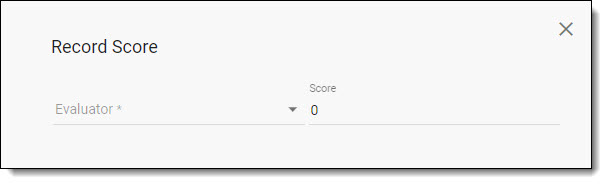
First choose the Evaluator for the condition; options are:
- Equals - the score is X
- Not Equals - the score does not equal X
- Less Than - the score is less than X
- Greater Than - the score is greater than X
Then set the Score value for the condition.
Hierarchies
The Hierarchies condition is only available for FileShare events.
You would choose the Hierarchies condition if you want to send an email to users who:
a) The file is shared with (in the FileShare settings)
WHEN
b) They have or do not have* access to the hierarchy node(s) specified in the conditions
* This is dependent on which Evaluator is selected. I.e. Equals or Not Equals.
For example, you might want to send an email notification to all your Region 1 users when you create a new FileShare that is being shared with them.
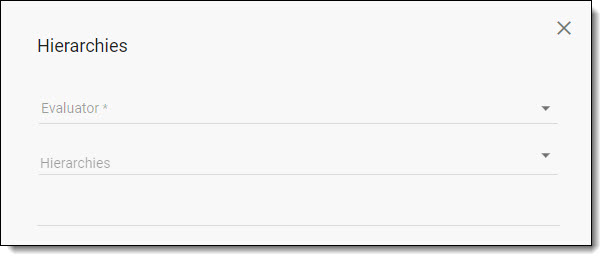
First choose the Evaluator for the condition; options are:
- Equals - the hierarchy is X
- Not Equals - the hierarchy does not equal X
Then select the Hierarchies value(s) for the condition. You can choose multiple nodes.
File Name
The File Name condition is only available for FileShare events.
You would choose the File Name condition if you want to send an email to users who:
a) The file is shared with (in the FileShare settings)
WHEN
b) The file name matches the condition
For example, when the file named "CSAT Results" is updated, you might want to send an email notification to all users that the file is shared with.
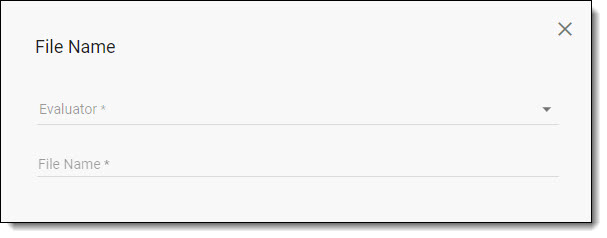
First choose the Evaluator for the condition; options are:
- Equals - the file name is X
- Not Equals - the file name is not X
- Contains - a keyword is found in the file name
- Does not contain - a keyword is not found in the file name
Then enter the File Name value for the condition.
Comments
0 comments
Article is closed for comments.