
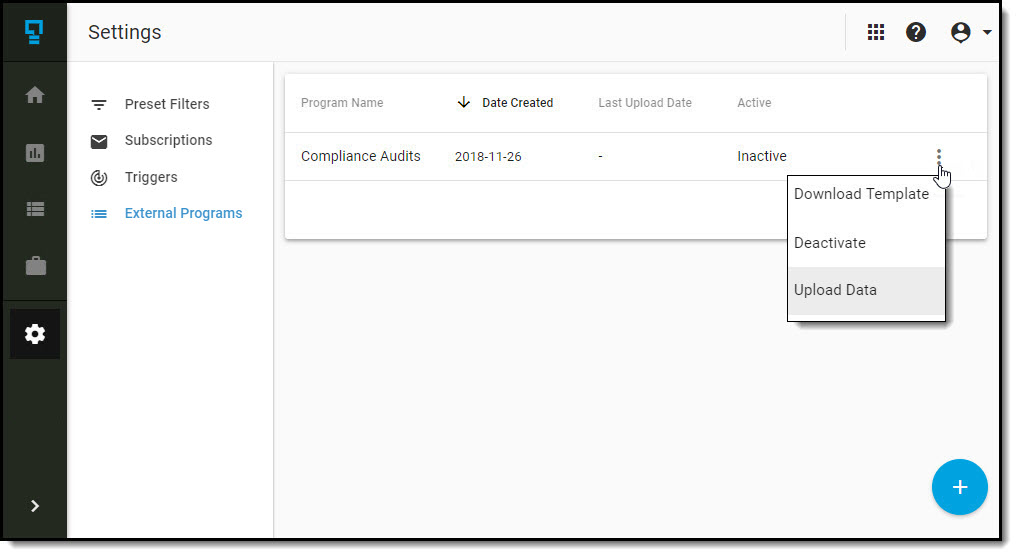
After you have populated your import file with the data for your external program, navigate to the External Programs list, and click on the triple-dot menu for the program, and then click on Upload Data.
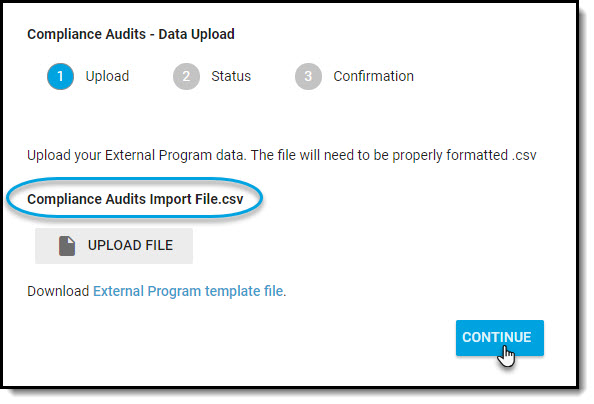
Step 1 - File Upload
- Click on Upload File, then browse for/select the import file you created; the file name will appear in the interface after it has been selected.
- Click on Continue
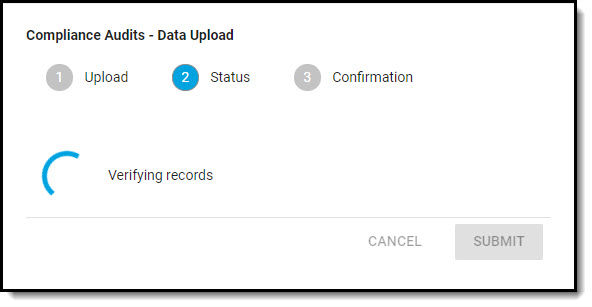
Step 2 - Data Verification
- The data in the file will be checked to confirm it meets all requirements.
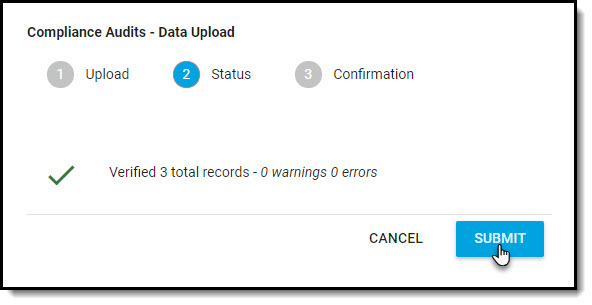
- If no errors or warnings are found, click on Submit to begin the import process.
- If errors are found in the file during the verification process, review the error message(s), cancel the upload and correct the issues in the file.
- Begin the process at Step 1 to upload/verify the file again.

Step 3 - Confirmation
- The data in the file will be processed and imported
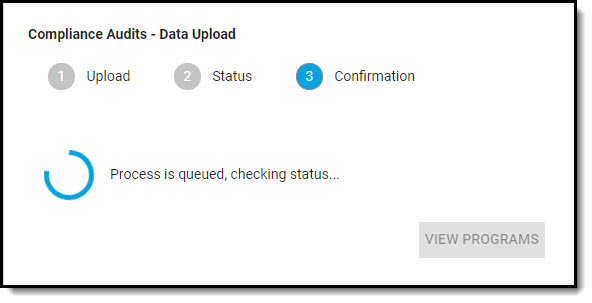
- When the import is complete, you can click on View Programs to go to the Program Score Cards to view your data.
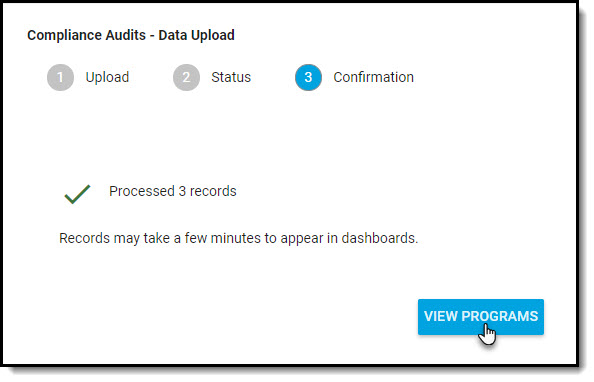
Depending on the amount of data you have imported, it may take a few minutes before it appears in the reports.
Your external program must be set to Active in order to be viewed in the reports.
Each active external program will have a Program Score Card in IQ.
Comments
0 comments
Article is closed for comments.