
To create a Single Select question for your external program form toggle Required on/off, whichever is applicable for that question; if this is on then there must be data for the question in your import file.
Then fill in all fields for that question:
|
Question Label |
This label will appear as the question text on the individual record reports. |
|
Question Column Name |
This label will appear as a column header in the template you will use to import your data and cannot be edited after it is created; only alpha-numeric characters, '-', and '_' are allowed. For example, if your question label is Was the floor inside the store clean?, your question column name might be FLOOR_CLEAN, or similar. This field cannot be edited after the question is saved. |
|
Question Type |
Single Select - for questions where only a single response could apply. This field cannot be edited after the question is saved. |
|
Data Type |
This determines what type of data may be imported to the question. Options are:
This field cannot be edited after the question is saved. |
|
Scored |
Indicate if the question is scored and assign the point value if it is. |
You will then create the answer set for your question; for each answer enter the:
|
Answer Label |
This label will appear as the answer text on the individual record reports. |
|
Answer Value |
You will use this value in your import file to indicate that this answer was selected; only alpha-numeric characters, '-', and '_' are allowed. For example, if your answer label is Yes or No, your answer value might be Y or N, or similar. This field cannot be edited after the question is saved. |
|
Points |
If the question is scored, indicate the point value of that answer. |
Click on Add Answer to create additional answer responses for a question.
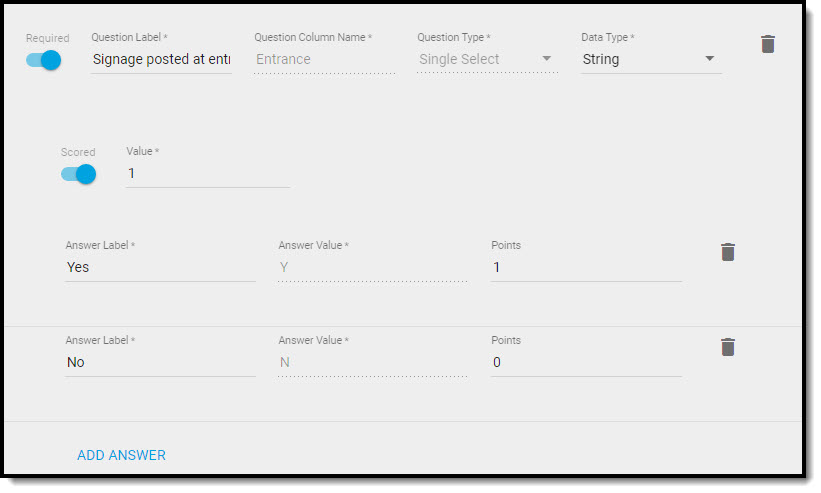
Example of a Single Select Question Setup
Comments
0 comments
Article is closed for comments.